
Key Pairs (Public & Private Keys)
YoMemo uses RSA key pairs for end-to-end encryption: your private key stays on your device to decrypt data and sign it; your public key is sent to the server so it can verify signatures and associate ciphertext with you. The server never sees your private key and cannot decrypt your memories.
Why the server needs your public key
Section titled “Why the server needs your public key”- The server stores only encrypted data and your public key.
- The public key is used to verify that incoming encrypted packages were signed by the matching private key.
- Without a registered public key, the server cannot accept your encrypted memories.
If you generate the key pair locally, you must upload the public key once (see Upload your public key (local key only) below). If you generate it in the YoMemo dashboard, the public key is registered for you automatically.
Recommendation
Section titled “Recommendation”Option A: Generate online (quick try)
Section titled “Option A: Generate online (quick try)”You can generate a key pair in the YoMemo dashboard and download the PEM file directly. Use this only for a quick try; for production or sensitive data, prefer Option B.
- Log in to YoMemoAI → Settings → Public Key.
- Click Generate Key Pair (or equivalent). The public key is registered automatically; download and save the private key PEM file (e.g.
private.pem).
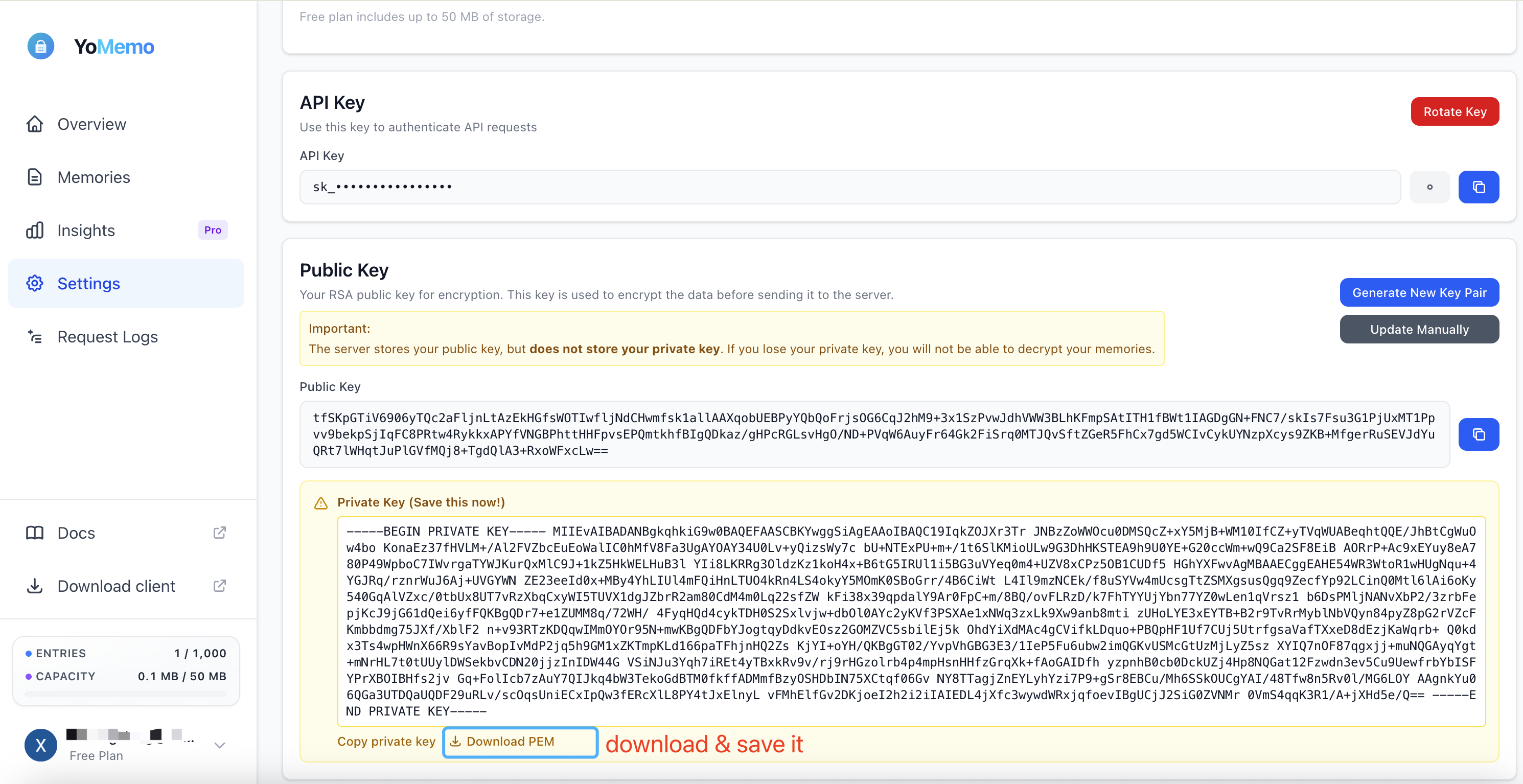
Option B: Generate locally (OpenSSL) — recommended
Section titled “Option B: Generate locally (OpenSSL) — recommended”Generate the key pair on your machine. The private key never leaves your device; maximum security.
# Using OpenSSLopenssl genrsa -out private.pem 2048Upload your public key (local key only)
Section titled “Upload your public key (local key only)”If you used Option B (local OpenSSL), you must upload your public key to YoMemo once. The server expects the Base64-encoded RSA modulus (not the full PEM). If you used Option A, skip this section.
-
Log in to YoMemoAI → Settings → Public Key.
-
Click Manually Update Public Key.
-
Get the public key in the required format from the directory containing
private.pem:macOS / Linux (OpenSSL + xxd):
Terminal window openssl rsa -in private.pem -noout -modulus \| sed 's/Modulus=//' | xxd -r -p | base64Any platform (Python 3 with
cryptography):Terminal window pip install cryptographyThen run (from the directory containing
private.pem):python3 -c "from cryptography.hazmat.primitives.serialization import (load_pem_private_key,)from cryptography.hazmat.backends import default_backendimport base64with open('private.pem', 'rb') as f:k = load_pem_private_key(f.read(), None, default_backend())n = k.public_key().public_numbers().nbyte_len = (n.bit_length() + 7) // 8print(base64.b64encode(n.to_bytes(byte_len, 'big')).decode())" -
Paste the single-line Base64 string into the dialog and click Update Public Key.
Next steps
Section titled “Next steps”- Getting Started — configure and use YoMemo with Python MCP
- Python MCP Integration — detailed MCP setup
- How It Works — encryption architecture